Axes
- Type the spacings: "3000 6000*2 3000" and columns 1, 2, 3 with rows А, Б, В are drawn
- Axis marks follow ГОСТ 21.101 and the drawing scale
- Placed with one click, object snap works
Walls, doors and windows, axes, rooms, GOST schedules — one click from a single panel
Coming soon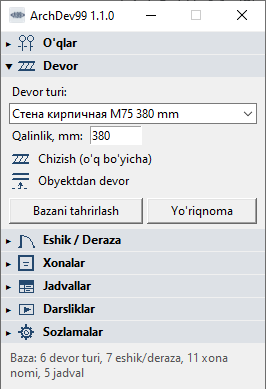
Every part of the drawing from one panel, one click at a time.
Open CAD Studio is a free open-source CAD. Install it, then run the ArchDev99 installer.
Open a drawing in Open CAD Studio: the panel appears next to the CAD window and connects to it through the local API.
Press the button you need, or start a wall with Ctrl+Alt+W. The panel does the rest.
| Feature | Free | Pro |
|---|---|---|
| Axes | ✓ Yes | ✓ Yes |
| Walls | ✓ Yes | ✓ Yes |
| Doors and windows | ✓ Yes | ✓ Yes |
| Empty tables | ✓ Yes | ✓ Yes |
| Layers | ✓ Yes | ✓ Yes |
| Database | ✓ Yes | ✓ Yes |
| Rooms (4 buttons) | — No | ✓ Yes |
| Schedule from blocks | — No | ✓ Yes |
14 days of Pro free, starting from the first launch.
The free part works forever.
Payment: by card; the key arrives in Telegram or automatically
Open CAD Studio itself is free.
Install ArchDev99, open Settings → License and copy the Computer ID.
Pay by card and send the Computer ID to us on Telegram.
The key arrives automatically (License → "Get from the internet") or via Telegram. Paste it into the window and press Activate.
Renewal works the same way: the new key arrives automatically.
If you do not have Open CAD Studio yet, download it for free from Open CAD Studio.
ArchDev99 1.1 is out: a vertical panel, Ctrl+Alt+… hotkeys, in-app lessons, new-version notifications and a new website.
Lessons coming soon
Open CAD Studio. It does not work with AutoCAD: the panel connects to Open CAD Studio through its local API.
Windows shows this warning because the program is not digitally signed. Click More info, then Run anyway.
The free part works offline. Pro needs an internet connection at least once every 30 days. The trial also needs one connection the first time.
No, the key is bound to the Computer ID. It keeps working after you replace a disk or the motherboard. After reinstalling Windows, contact us for a new key.
After payment a new key is prepared and the program fetches it from the internet by itself (License → "Get from the internet"). If you prefer, the key can also be sent on Telegram.
14 days from the first launch. During that time the Pro features work for free.